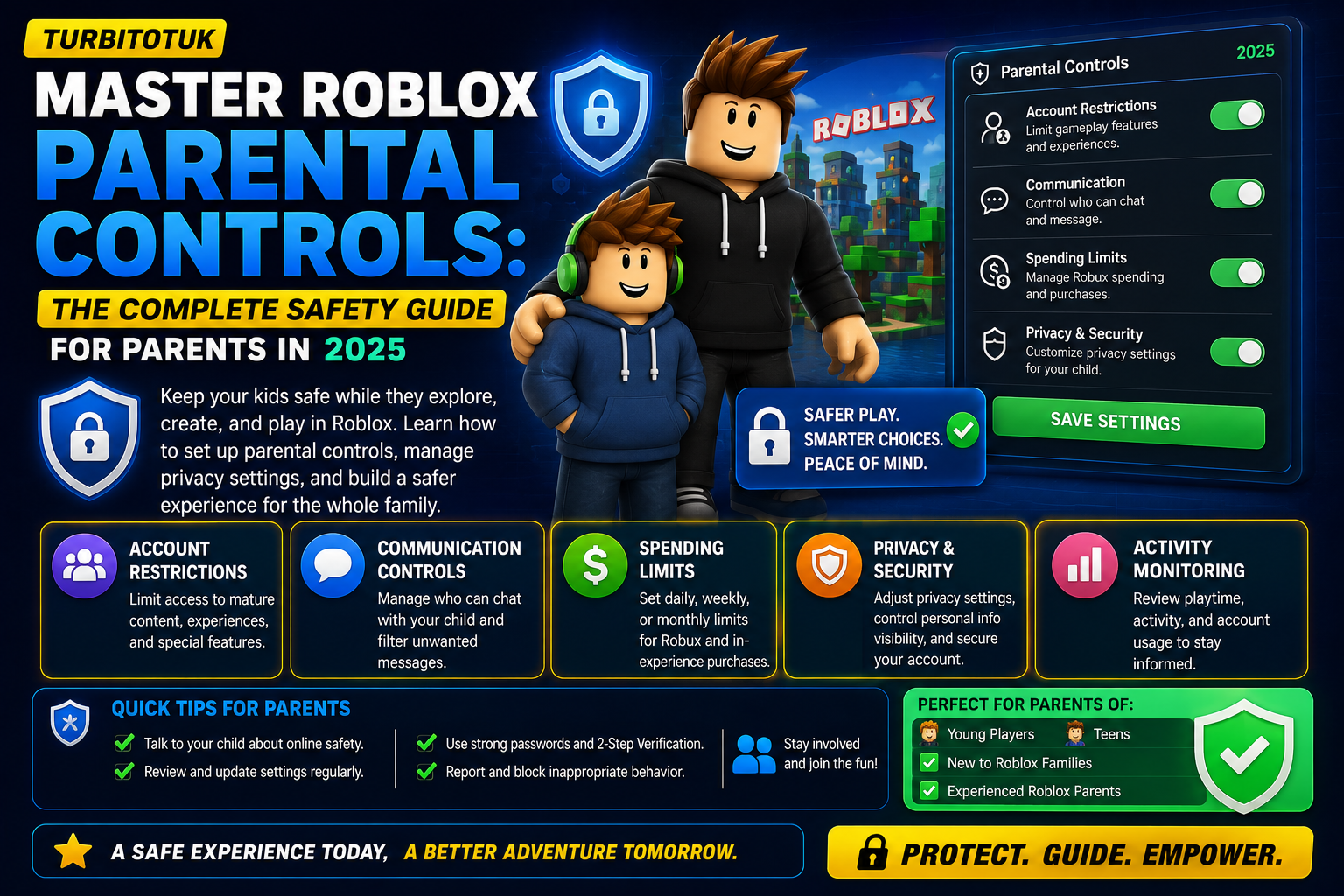
- Why Roblox Parental Controls Matter Now More Than Ever
- The Big Changes in 2024–2025: What You Need to Know
- Setting Up Remote Parental Controls from Your Own Account
- Content Restrictions: Four Maturity Levels to Know
- Communication Settings: Who Can Chat with Your Kid
- Screen Time and Spending Limits
- Friend Requests and Connections Management
- What About Roblox Kids and Roblox Select?
I’ve been helping parents navigate Roblox parental controls for years now, and honestly, the platform’s recent updates have made the job way easier—and a lot more powerful. If you’ve got kids who love Roblox, you’ve probably wondered how to keep them safe without killing the fun. That’s exactly what modern Roblox parental controls are designed to do: give you real oversight without hovering over their shoulder 24/7.
Why Roblox Parental Controls Matter Now More Than Ever
Look, Roblox isn’t just a simple game anymore. It’s a massive social platform where kids create, play, and chat with thousands of other players globally. In November 2024, Roblox rolled out significant updates to its safety systems and parental controls, recognizing that parents needed better tools to protect their kids in this space. The platform is home to millions of daily players, many under 13, which is why having solid parental controls isn’t optional—it’s essential.
Here’s the real talk: I’ve seen what happens when parents don’t set these up. Kids end up in situations they shouldn’t be in, or they’re spending money they don’t understand. That’s where Roblox parental controls come in. They’re not about restriction for restriction’s sake; they’re about creating a balanced, safe environment.
The Big Changes in 2024–2025: What You Need to Know
Roblox rolled out more than 40 safety updates in 2024, which included built-in protections for the youngest users, new content labels, and limitations on how users younger than 13 can communicate. For parents, this is huge.
One major change: users under the age of 13 will no longer be able to message others outside of games and experiences. This is the default now. Kids can still chat *within* games, but the platform messaging system? Locked down for under-13 accounts unless you specifically enable it.
Social Hangouts—spaces where users primarily gather to chat and socialise—will only be accessible to users over 13, and Free-form User Creation, which allows players to create custom 2D content visible to other users without prior moderation, will also have an age restriction. This is Roblox taking a real stand on safety.
Setting Up Remote Parental Controls from Your Own Account
Here’s my favorite update: remote-accessible parental controls now allow a parent or guardian to use their own Roblox account to manage and monitor their child’s gaming experience. No more needing access to your kid’s device or password. Game-changer.
To get started at Turbitotuk (where we break down the practical side of gaming safety), here’s what you do:
- Create your own Roblox parent account. You must be age-checked at 18 years of age or older to enable parent privileges. Verify your identity with a driver’s license or credit card—yeah, it takes a minute, but it’s worth it.
- Link your account to your child’s account. After linking your accounts, you can view and update parental controls for your child on Roblox.com and the Roblox mobile app, and you get access to insights about your child’s Roblox usage, such as their daily screen time and on-platform connections.
- Lock down the settings with a PIN. Set a Parental Controls PIN in Security settings to lock privacy and spending settings so your child cannot change them.
Content Restrictions: Four Maturity Levels to Know
This is where parents get real control. Roblox now offers age-appropriate content ratings: All Ages, 9+, 13+, and 17+, and you can restrict which content ratings your child can access through the parental controls section—a feature that rolled out in 2024 as part of Roblox’s enhanced safety measures.
I recommend tailoring this to your child’s age:
- Under 9? Stick to «All Ages» or «9+.» When Account Restrictions is enabled, it limits the account to a curated list of experiences that Roblox has verified as age-appropriate and disables free-form chat—your child can only select from a pre-approved menu of messages, which is best for children under 9 who do not need open communication with other players.
- 9 to 12 years old? Consider «9+» or carefully supervised «13+.» The default at Turbitotuk’s recommendation is to start conservative and adjust only when you’re confident.
- 13 and up? You can set content maturity levels between Minimal, Mild and Moderate, but you cannot choose Restricted for under-13s because certain content is already restricted for this age group.
Communication Settings: Who Can Chat with Your Kid
This is the safest layer. Communication controls allow you to determine who your child can chat with on Roblox, and to access chat features, every user must complete an age check, which unlocks default age group settings that you can adjust.
Your options:
- Parents can choose to turn chat off for users under 13.
- If you decide to allow your child under 9 to chat, they will only be able to communicate with users under 13 years old or trusted friends.
- For teens 13+, you can allow in-game chat with age-verified users or friends only.
Roblox chat is filtered to prevent any personally identifiable information or inappropriate content from being shared with other users, which gives you that extra layer of automatic protection even with chat enabled.
Screen Time and Spending Limits
Parents can now see their child’s friends list and set a hard limit on screen time for the game, in addition to existing spend limits, which allow parents to manage how much real money a child spends on in-game purchases. This is practical stuff. Kids can blow through money on Robux (the in-game currency) without realizing it. Setting a cap prevents surprise charges.
I always tell parents at Turbitotuk to start with a monthly spending limit of $0 if you want to be strict, then gradually increase it only if you trust your child’s decisions. You can adjust it anytime.
Friend Requests and Connections Management
You can scroll down to Connections and select Manage to display your child’s Connections as usernames alongside their avatar, click on an avatar to see the user’s profile, and block and report a Connection by selecting the three dot menu next to the username.
This matters because kids accept friend requests constantly during play, sometimes from strangers. Reviewing their connections list weekly is solid parenting 101.
What About Roblox Kids and Roblox Select?
Roblox now has age brackets for child accounts, Roblox Kids (ages 5-9) and Roblox Select (ages 9-15), with children 16+ having full access to most Roblox features. Your child’s account type is determined by their birthday at signup, and it automatically restricts features based on age.
Related content
Frequently Asked Questions
Can I control Roblox parental controls from my own account without my child’s password?
Yes. As of 2024–2025, you can create a linked parent account with your own Roblox credentials and manage all parental controls remotely. You need to be age-verified at 18+ and link your child’s account to yours. From there, you have full access to settings on both the website and mobile app without needing your child’s password.
What happens if my child is under 13 and tries to direct message someone on Roblox?
By default, they can’t. Roblox automatically blocks direct messages for users under 13. They can only send broadcast messages within games (visible to everyone in that experience). You can enable direct messaging through parental controls if you choose, but the default is off for safety.
Are there any games on Roblox that are completely blocked for kids under 13?
Yes. Social Hangouts (spaces designed for chatting) and Free-form User Creation (custom 2D content tools) are restricted to users 13 and older as of November 2024. However, role-play games and 3D creations that have been pre-screened by Roblox moderators are still available to younger players.
How do I prevent my child from spending money on Robux without my permission?
Set a monthly spending limit through Parental Controls. You can cap it at $0 if you want to block all purchases, or set a specific amount. You’ll also receive spending notifications. Additionally, ensure your child doesn’t have access to saved payment methods on their device or account.
Conclusion
Setting up Roblox parental controls doesn’t mean your kid can’t have fun—it means they have fun safely. The 2024–2025 updates give you real, remote control from your own account, and the default settings are actually solid if you know how to tweak them. Start with strict settings (no chat, age-appropriate content), then gradually loosen them as your child proves they can handle more freedom. Check their connections list weekly, monitor their screen time, and have actual conversations about what they’re playing. That combination of tech safeguards plus parent engagement? That’s how you win at this. Share your parental control tips in the comments—we’re all learning this together.