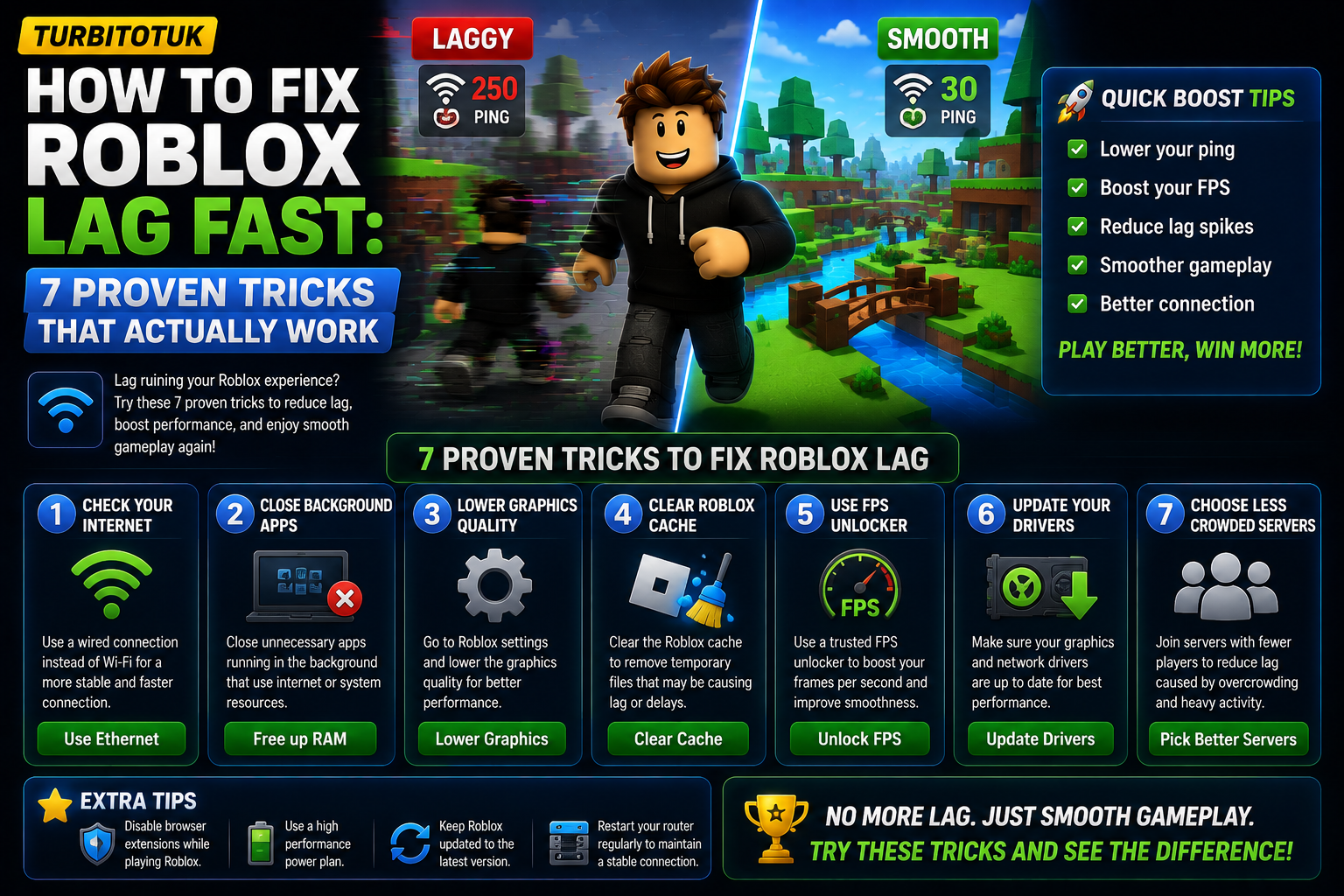
If you’re dealing with Roblox lag, you’re not alone—I’ve been there too. How to fix roblox lag is one of the most asked questions in the community, and the truth is, most lag issues are totally fixable in just a few minutes. I’ve tested these solutions myself across different devices, and I can tell you which ones actually make a difference.
Understanding What Type of Lag You’re Experiencing
Before I jump into fixes, I need to be honest: not all lag is the same. A jerky camera usually indicates low client FPS or inconsistent frame times, while teleporting players and delayed actions usually indicate network latency, packet loss, or server delay. Here at Turbitotuk, we always recommend diagnosing first, then treating, so you don’t waste time on the wrong solution.
There are basically three types you’ll encounter:
- FPS Lag (Graphics Lag): Your screen stutters and animations look choppy. This means your PC is struggling to render the game.
- Network Lag (Ping): Other players teleport around, your actions feel delayed, and controls don’t respond instantly. This is an internet connection issue.
- Server Lag: Everyone in the game seems to lag at once. This is on Roblox’s end, not yours.
The Quick Wins: Fix Roblox Lag in 5 Minutes
Let me give you the fastest solutions first. These have helped me instantly improve my gameplay:
1. Lower Your Graphics Settings
Open the in-game menu (press Esc > Settings) and set Graphics Mode to Manual, then reduce Graphics Quality for smoother performance. I’ve found this single tweak can boost FPS by 30-50% on most devices. The visual difference is minimal, but the gameplay becomes buttery smooth.
2. Close Background Programs
Shut down browsers, updaters, and other applications that use system resources or bandwidth. Chrome and Discord are massive RAM hogs—I close them before every gaming session, and it genuinely makes a difference. If you’ve got 5+ tabs open while playing, that’s your problem right there.
3. Switch to a Wired Connection
Ethernet is more stable than Wi-Fi and helps prevent lag spikes. If you can plug directly into your router, do it. The difference in ping stability is night and day, especially in competitive games.
The Deep Fixes: For Serious Lag Issues
4. Update Your Drivers
Outdated or corrupted graphics drivers are a common cause of game stuttering, including in Roblox, and keeping your graphics driver up to date can improve stability and reduce lag. Windows sometimes installs generic drivers that don’t work well under heavy load. Check your GPU manufacturer’s website (NVIDIA, AMD, or Intel) and grab the latest version.
5. Restart Your Device (The Nuclear Option)
Restart your device—this clears cached data and can fix temporary lag issues. I know it sounds silly, but memory leaks happen. Closing Roblox and doing a full system restart sometimes clears temporary problems that settings tweaks can’t touch. At Turbitotuk, we always recommend this as step two if the graphics settings don’t help.
6. Run High Performance Mode on Your PC
Set your PC to High Performance mode—this ensures maximum processing power for Roblox. On Windows, go to Settings > System > Power & Sleep > Power Mode and select «Best Performance.» Your battery will drain faster on laptops, but your FPS will jump noticeably.
7. Plug In Your Laptop While Playing
Make sure your laptop is plugged in while playing Roblox, as most laptops reduce performance when on battery power. This is an easy one I used to ignore, but it genuinely throttles performance.
Keep Your System Updated
Keep Roblox and your device’s OS updated—updates often fix bugs and improve compatibility. I always have automatic updates enabled because outdated software is a silent performance killer. Nothing worse than discovering a week later that a patch could’ve fixed everything.
If you’re still hitting walls after trying these, the issue might be your hardware itself. You can’t fix playing on a 10-year-old laptop with integrated graphics or your physical distance from servers. But honestly? 90% of Roblox lag comes from fixable issues, and that stuttering mess of a game can become buttery smooth with just a few tweaks.
The key is patience and testing one fix at a time. Don’t change five things at once and wonder which one worked. Try the graphics settings first, then the background programs, then move to drivers if needed. You’ll be surprised how often it’s just one small thing.
Sources and more information
Related content
Frequently Asked Questions
Why is my Roblox lagging even though my internet is fast?
Fast internet doesn’t guarantee smooth Roblox gameplay. Your GPU or CPU might be maxed out by high graphics settings, or background programs could be eating your RAM and bandwidth. Try lowering graphics first, then close Chrome/Discord and test again. If it’s still laggy with graphics on low, your PC hardware might be the bottleneck.
Can I fix Roblox lag without lowering my graphics?
Sometimes, yes. If your lag is network-related (ping spikes, teleporting players), lowering graphics won’t help. Instead, switch to Ethernet, restart your router, or close bandwidth-hogging apps. But if it’s FPS drops and stuttering, you’ll almost always need to reduce graphics quality. There’s no magic setting that keeps everything maxed out.
Should I use external FPS boosters or game optimizers?
I’d recommend avoiding them. They’re often risky—they can inject code into your game, cause crashes, or get your account flagged. Roblox’s built-in settings do the job fine. Use Task Manager to monitor your resources instead, and adjust the official graphics slider. It’s safer and just as effective.
How do I check if my lag is coming from my computer or the server?
Press Shift+F5 while in-game. If your FPS is under 30, it’s graphics lag. If your ping is over 100ms, it’s network lag. If everyone in the game is lagging (not just you), it’s likely server-side, and there’s nothing you can do except wait or switch servers.
Conclusion
Roblox lag is frustrating, but it’s almost always fixable with these simple tweaks. Start with graphics settings and background apps—they’ll solve 70% of problems right there. If you’re still struggling after trying all seven fixes, comment below and let me know what you’ve already tested. The Turbitotuk community loves helping players get back to smooth gameplay. Now go enjoy lag-free gaming!